
Pick your device below — same step-by-step process and screenshots as our official installation guide.
How to Install and Set Up IPTV Smarters Pro on Your Fire TV Stick
Step 1: Enable Apps from Unknown Sources
Before installing any third-party apps like IPTV Smarters Pro, you need to allow apps from unknown sources. Here's how:
- Go to the Settings on your Fire TV Stick.
- Navigate to My Fire TV or Device (depending on your version).
- Select Developer Options.
- Turn on Apps from Unknown Sources.
Step 2: Install Downloader App
To install IPTV Smarters Pro on your Fire TV Stick, you need to use the Downloader app:
- Go to the Amazon Appstore on your Fire TV Stick.
- Search for Downloader and install the app.
Step 3: Download IPTV Smarters Pro APK
- Open the Downloader app.
- In the URL field, type the following link for the IPTV Smarters Pro APK:
https://bit.ly/2Lh3ysG(or the official APK download URL for IPTV Smarters Pro). - Press Go, and the app will begin downloading.
Step 4: Install IPTV Smarters Pro
- Once the APK file is downloaded, the installation prompt will automatically appear.
- Select Install to begin the installation process.
- After the installation is complete, click Done.
Step 5: Open IPTV Smarters Pro
- You can now find the IPTV Smarters Pro app in the Your Apps & Channels section.
- Click on it to open the app.
Step 6: Log In to IPTV Smarters Pro
- Launch IPTV Smarters Pro on your Fire TV Stick.
- When prompted, enter the Username, Password, and Portal URL provided by your IPTV service provider.
- Click Add User, and the app will fetch all your IPTV content.
App Code for IPTV Smarters Pro:
For IPTV Smarters Pro, the login details are provided by your IPTV service provider. This includes:
- Username
- Password
- Portal URL (the link your IPTV provider gives you to access their server)
NOTE: Reach out to us on WhatsApp if you haven't received your 4k iptv live login details after purchase.
Install IPTV on your Android/iOS Devices
Step 1 — Android: Download https://www.iptvsmarters.com/smarters.apk and install IPTV Smarters Pro.
Step 1 — iOS: Install Smarters Player Lite from the App Store.
Great! You now have the IPTV Smarters app for your 4k live iptv setup.
Step 2: Open the app once downloaded and enter your login details.
You can add IPTV channels to IPTV Smarters in two ways:
- Setup via Xtream Codes API.
- Setup via Playlist.
Setup IPTV Smarters via Xtream Codes API
We recommend setup via Xtream Codes API because you will have the Catchup feature this way and also do not need to add any EPG URL (it will load automatically).
STEP 1:
Open the app once downloaded and click on Add user then click on Login with Xtream Codes API.
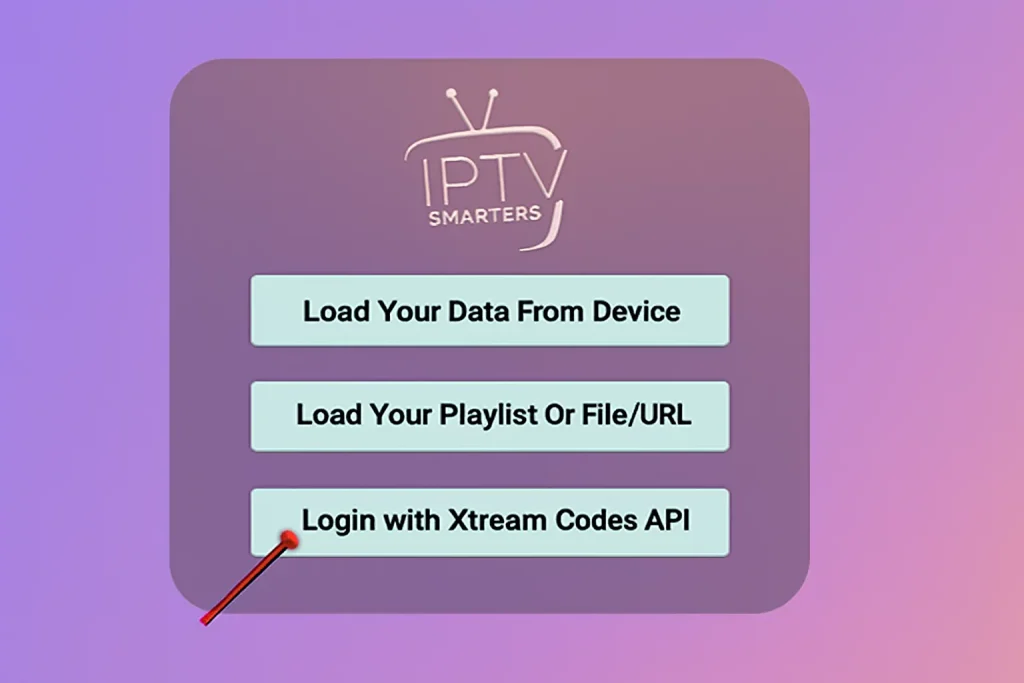
STEP 2:
In this step, in the first box, select any name you want — for example 4K IPTV. In the next boxes, enter the Username, Password, and server URL that we sent you via WhatsApp, Email, or Chat.
Now click on ADD USER to proceed to the next section.
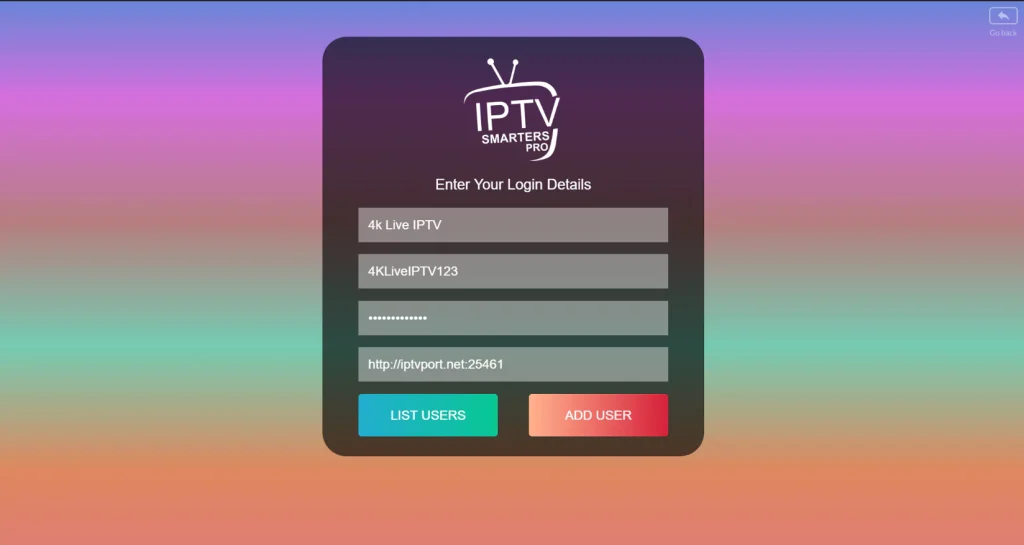
STEP 3:
Wait a few seconds.
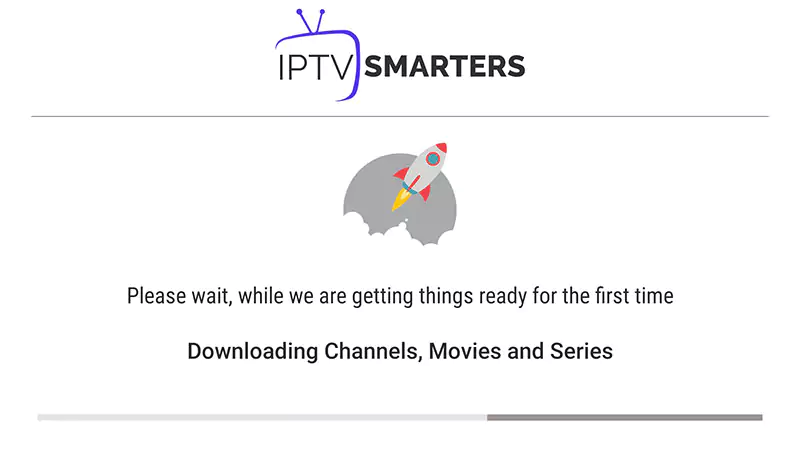
STEP 4:
Now click on the Live TV icon as shown in the image.
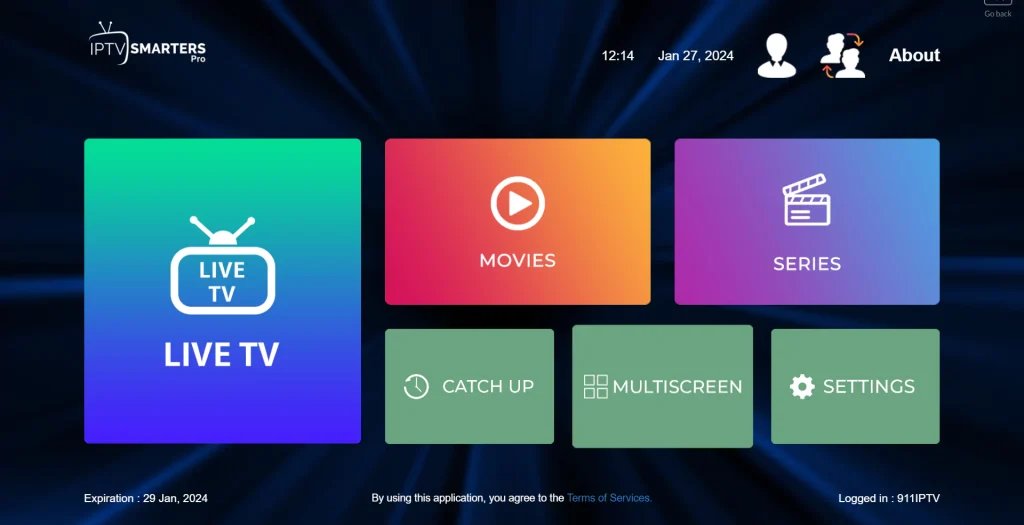
STEP 5:
Select the channel group you want to watch and proceed to the next section.
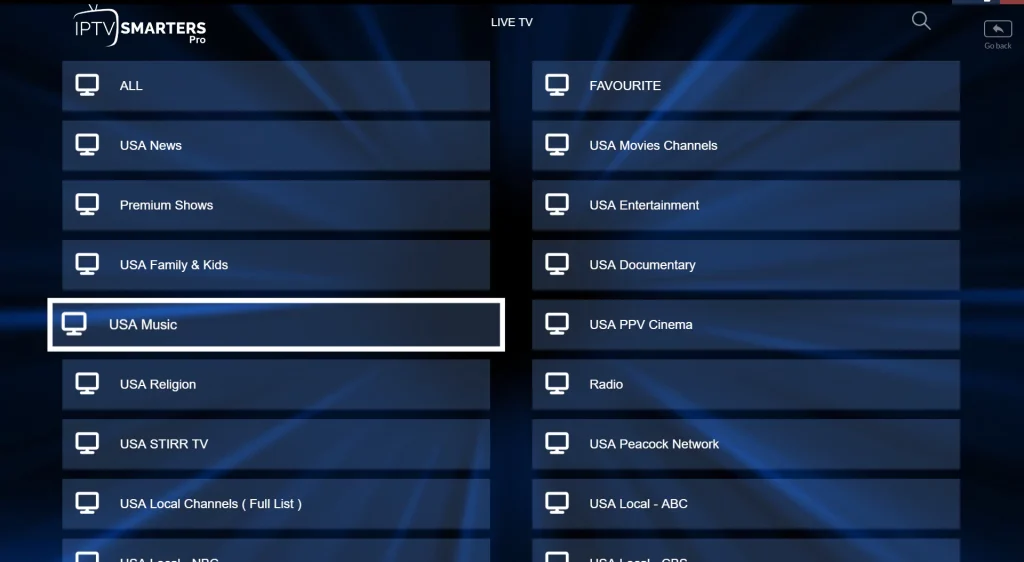
STEP 6:
Click on the channel name, then double-click the small screen to go full screen.
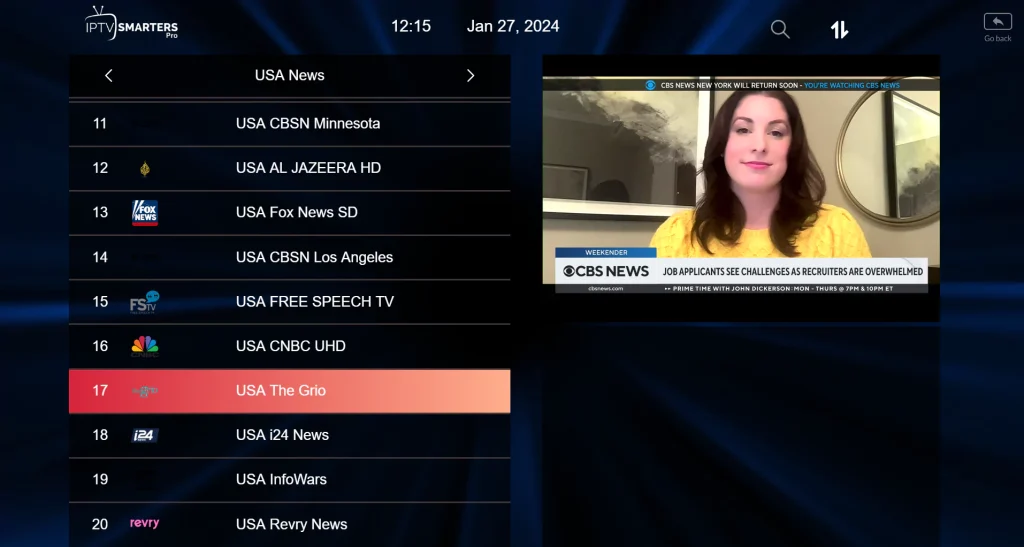
STEP 7:
Setup IPTV Smarters via Playlist
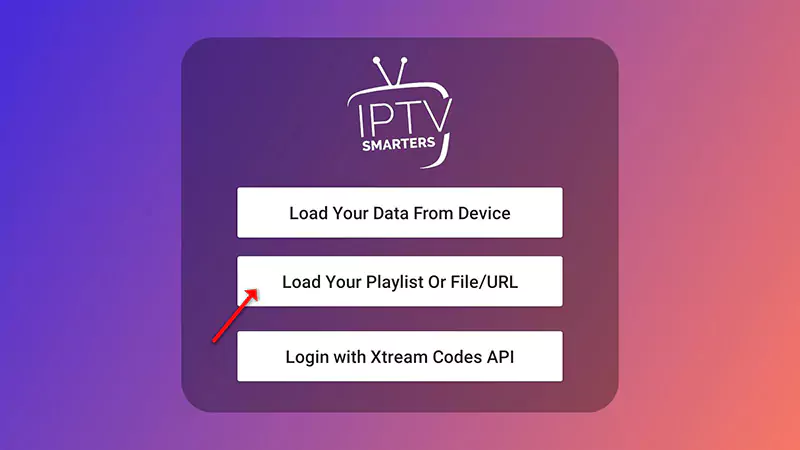
If you don't have an Xtream Code API, you can use an M3U URL and choose to Load Your Playlist or File URL.
STEP 1:
Open the app once downloaded and click on Add user then click on Login with Playlist.
STEP 2:
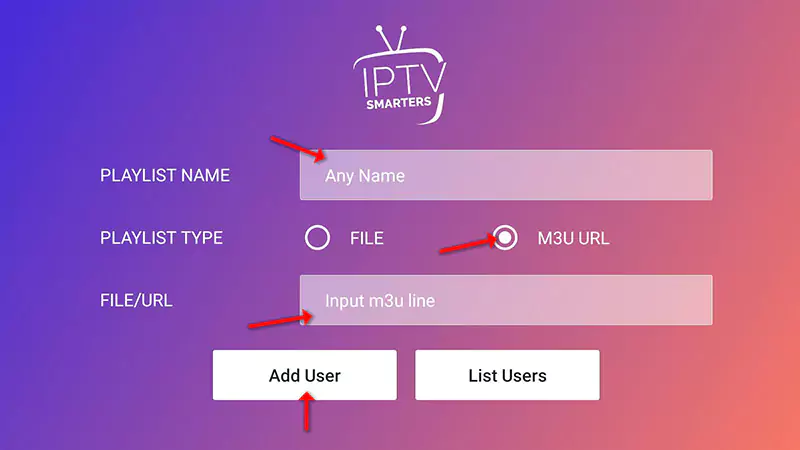
In the first box, select any name you want — for example IPTV Playlist. Select M3U URL and enter the M3U URL that we sent you via WhatsApp, Email, or Chat.
STEP 4:
Now click on the Live TV icon, select a channel group, then the channel you want to watch. Enjoy your favourite streaming channel.
Install IPTV on your Samsung & LG Smart TV
For Samsung Smart TV
- Press the Smart Hub button on your remote.
- Search for Smarters Pro to install.
- Log in to the application with your subscription details — Username, Password, Portal URL.
For LG Smart TV
- Press the Home button on the remote and go to LG Content Store.
- Search for Smarters Pro to install.
- Log in to the application with your subscription details — Username, Password, Portal URL.
Great! You now have the IPTV Smarters app ready for 4k iptv live streaming.
When you run the IPTV Smarters app for the first time, Terms of Use will be the first window. Scroll down and click Accept.
You can add IPTV channels to IPTV Smarters in two ways:
- Setup via Xtream Codes API.
- Setup via Playlist.
Setup IPTV Smarters via Xtream Codes API
We recommend setup via Xtream Codes API because you will have the Catchup feature this way and also do not need to add any EPG URL (it will load automatically).
STEP 1:
Open the app once downloaded and click on Add user then click on Login with Xtream Codes API.
STEP 2:
In this step, in the first box, select any name you want — for example 4K IPTV. In the next boxes, enter the Username, Password, and server URL that we sent you via WhatsApp, Email, or Chat.
Now click on ADD USER to proceed to the next section.
STEP 3:
Wait a few seconds.
STEP 4:
Now click on the Live TV icon as shown in the image.
STEP 5:
Select the channel group you want to watch and proceed to the next section.
STEP 6:
Click on the channel name, then double-click the small screen to go full screen.
STEP 7:
Setup IPTV Smarters via Playlist
If you don't have an Xtream Code API, you can use an M3U URL and choose to Load Your Playlist or File URL.
STEP 1:
Open the app once downloaded and click on Add user then click on Login with Playlist.
STEP 2:
In the first box, select any name you want — for example IPTV Playlist. Select M3U URL and enter the M3U URL that we sent you via WhatsApp, Email, or Chat.
STEP 4:
Now click on the Live TV icon, select a channel group, then the channel you want to watch. Enjoy your favourite streaming channel.
Install IPTV on your Formuler Box/Device
FormulerZ boxes are one of the best devices for watching IPTV. The most important advantage of FormulerZ boxes is supporting both MAC-based Portal System and M3U-based Playlist.
FormulerZ8 is the latest version with the MYTV Online 2 application which supports 4K Ultra HD streaming. This setup guide works for all Formuler device models.
STEP 1:
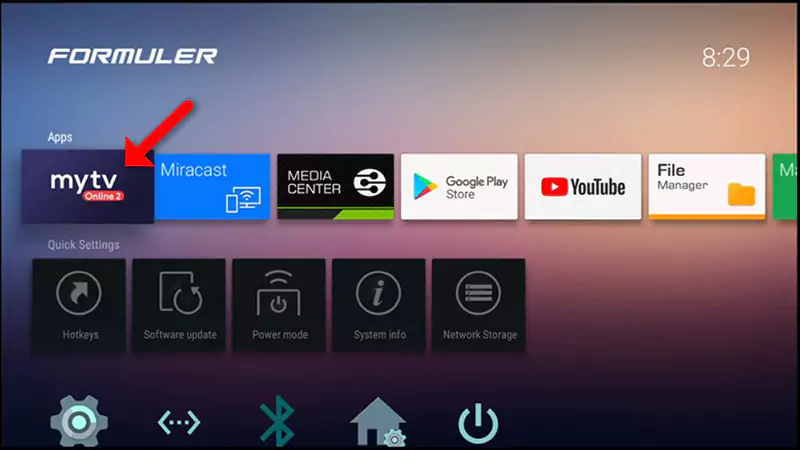
Open the exclusive application for watching IPTV on Formuler boxes — MYTV Online 2. If you don't have this application, download it from the Google Play Store.
STEP 2:
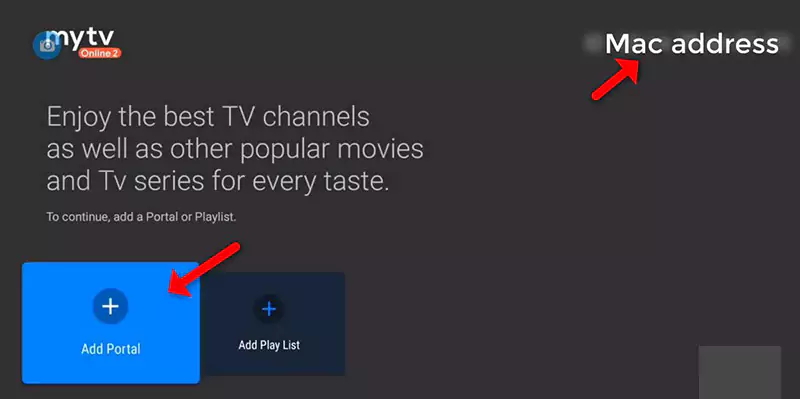
You can see the box's MAC in the top right of this page. Please note, this MAC address must be given to your IPTV provider.
Select Add Portal to set the device as a MAC-based device like MAG boxes.
STEP 3:
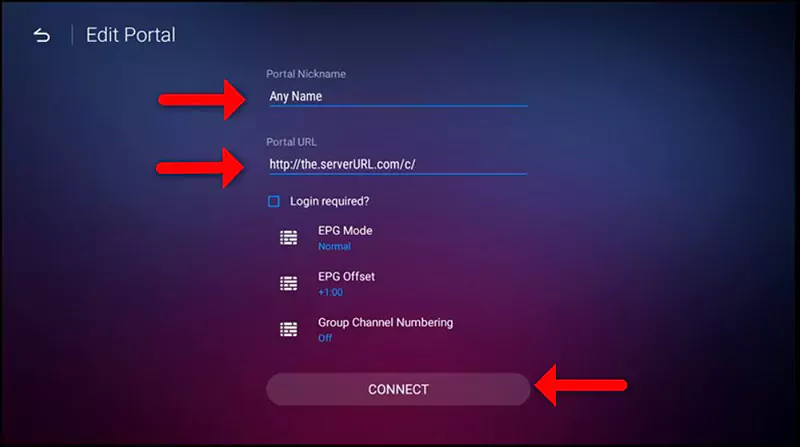
Enter Portal Nickname (Example: MYIPTV). Enter the IPTV Portal URL you get from your IPTV provider and click on CONNECT. Contact us on WhatsApp for your portal URL.
Install IPTV on your Window/Mac device
Step 1 — Windows/MAC: Download https://www.iptvsmarters.com/smarters.apk and install IPTV Smarters Pro.
Step 1 — iOS: Install Smarters Player Lite from the App Store.
Great! You now have the IPTV Smarters app.
Step 2: Open the app once downloaded and enter your login details.
You can add IPTV channels to IPTV Smarters in two ways:
- Setup via Xtream Codes API.
- Setup via Playlist.
Setup IPTV Smarters via Xtream Codes API
We recommend setup via Xtream Codes API because you will have the Catchup feature this way and also do not need to add any EPG URL (it will load automatically).
STEP 1:
Open the app once downloaded and click on Add user then click on Login with Xtream Codes API.
STEP 2:
In this step, in the first box, select any name you want — for example 4K IPTV. In the next boxes, enter the Username, Password, and server URL that we sent you via WhatsApp, Email, or Chat.
Now click on ADD USER to proceed to the next section.
STEP 3:
Wait a few seconds.
STEP 4:
Now click on the Live TV icon as shown in the image.
STEP 5:
Select the channel group you want to watch and proceed to the next section.
STEP 6:
Click on the channel name, then double-click the small screen to go full screen.
STEP 7:
Setup IPTV Smarters via Playlist
If you don't have an Xtream Code API, you can use an M3U URL and choose to Load Your Playlist or File URL.
STEP 1:
Open the app once downloaded and click on Add user then click on Login with Playlist.
STEP 2:
In the first box, select any name you want — for example IPTV Playlist. Select M3U URL and enter the M3U URL that we sent you via WhatsApp, Email, or Chat.
STEP 4:
Now click on the Live TV icon, select a channel group, then the channel you want to watch. Enjoy your favourite streaming channel.